08/08Free tool
Best OBS Settings Calculator
Find the best OBS settings for your connection. Tell us your platform, your upload speed and your computer, and get the bitrate, resolution and encoder settings to type into OBS. No sign-up.
Run a speed test on the computer you stream from, ideally with a cable, and use the upload number.
Want a stream that looks as good as it runs? Get the free OBS widgets
Platforms update their guidelines from time to time. These values are conservative and work well in practice; if you stream at the highest quality, double-check your platform.
·How to apply it
Enter it in OBS in a few minutes
- Open Settings > Video. Set Base (Canvas) Resolution to your screen and Output (Scaled) Resolution to the value in the table. Choose the downscale filter and FPS shown.
- Open Settings > Output and change Output Mode to Advanced. On the Streaming tab pick the encoder and fill in the values from the table.
- Open the Audio tab in Output and set the audio bitrate. Then set the sample rate in Settings > Audio.
- Click Apply and start a test stream, or record a short clip. If you see dropped frames in the OBS status bar, lower the bitrate a little.
Make your stream look the part
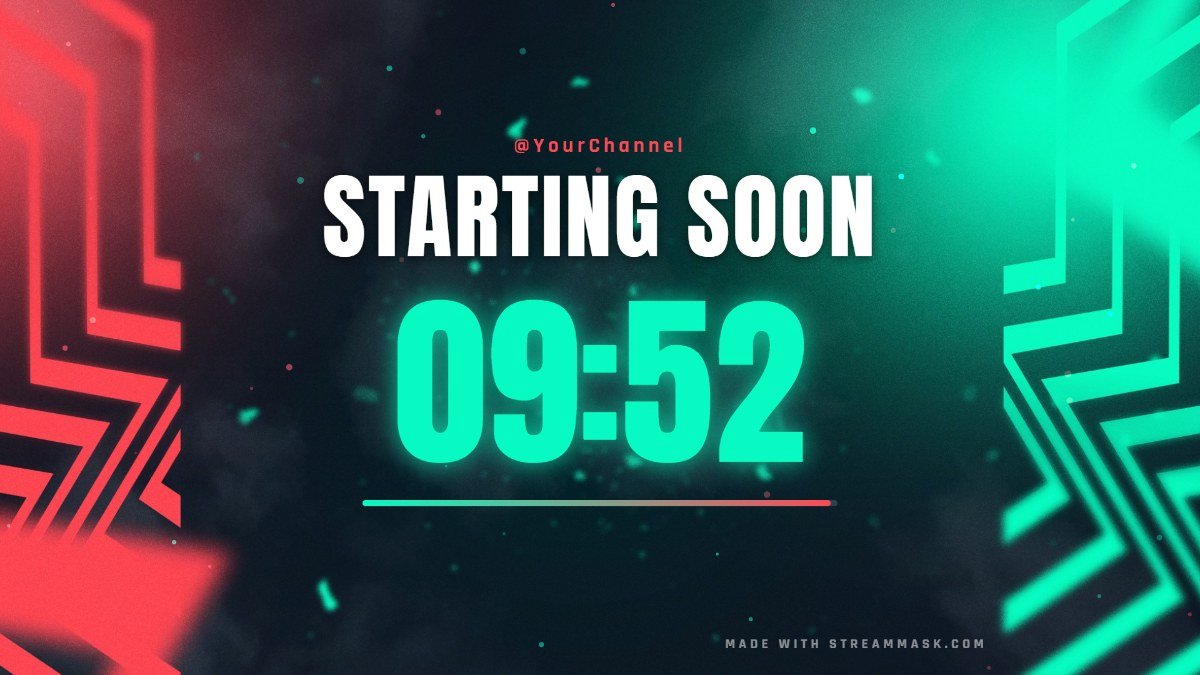
Add a countdown, a live chat box and a schedule in your own colors with the free OBS widgets.
Open the OBS widgets03Questions
OBS settings questions
01What is the best bitrate for streaming on Twitch?
02How much of my upload speed should I use?
03Which encoder should I choose in OBS?
04Why CBR and a 2 second keyframe interval?
05How do I find my upload speed?
06Are these numbers official?
-
01
Overlay Creator
21 scenes: stream screens, overlays, alerts, banners and social posts
-
02
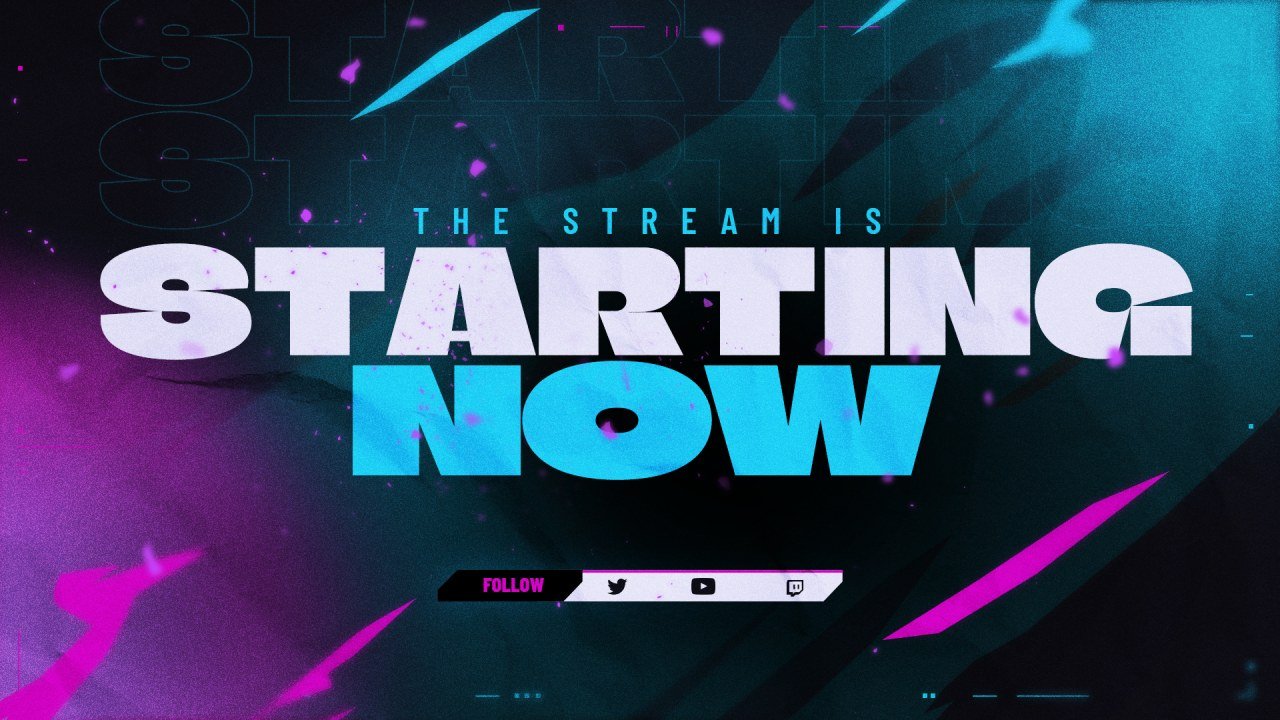
Customizer
Recolor a stream screen in your brand colors and add your handle.
-
03
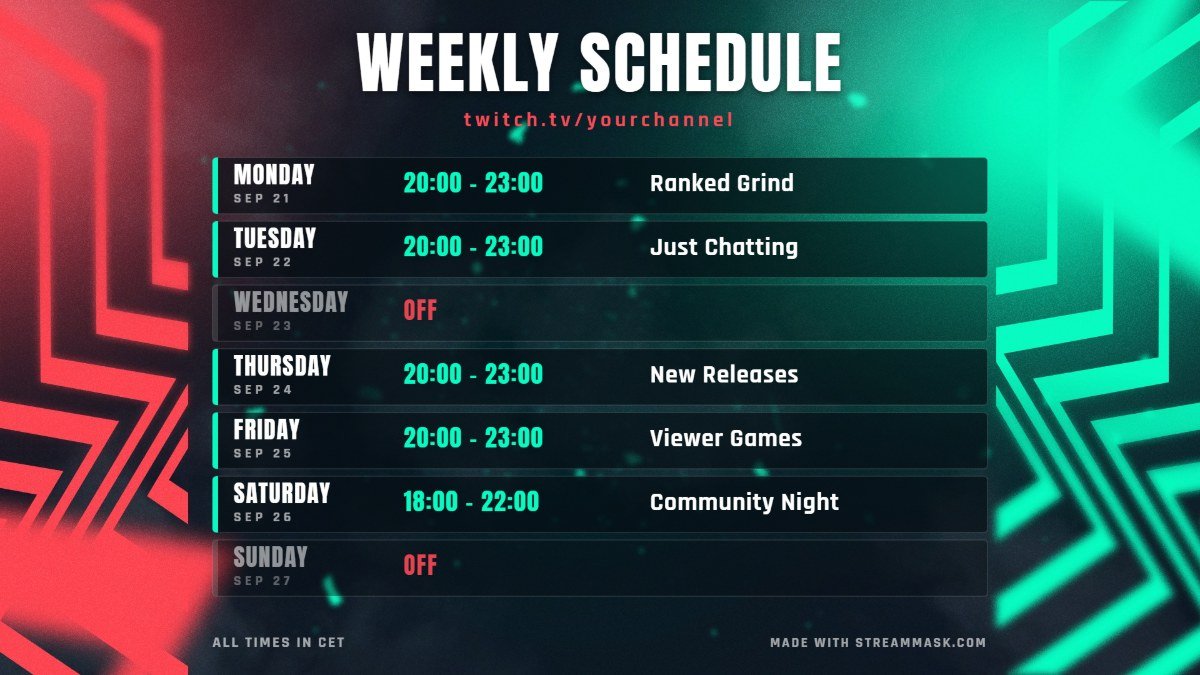
Schedule Maker
Make a weekly schedule image, ready to post.
-
04
OBS Widgets
Starting soon countdown, BRB timer, live chat box and social rotator.
-
05
Brand Kit
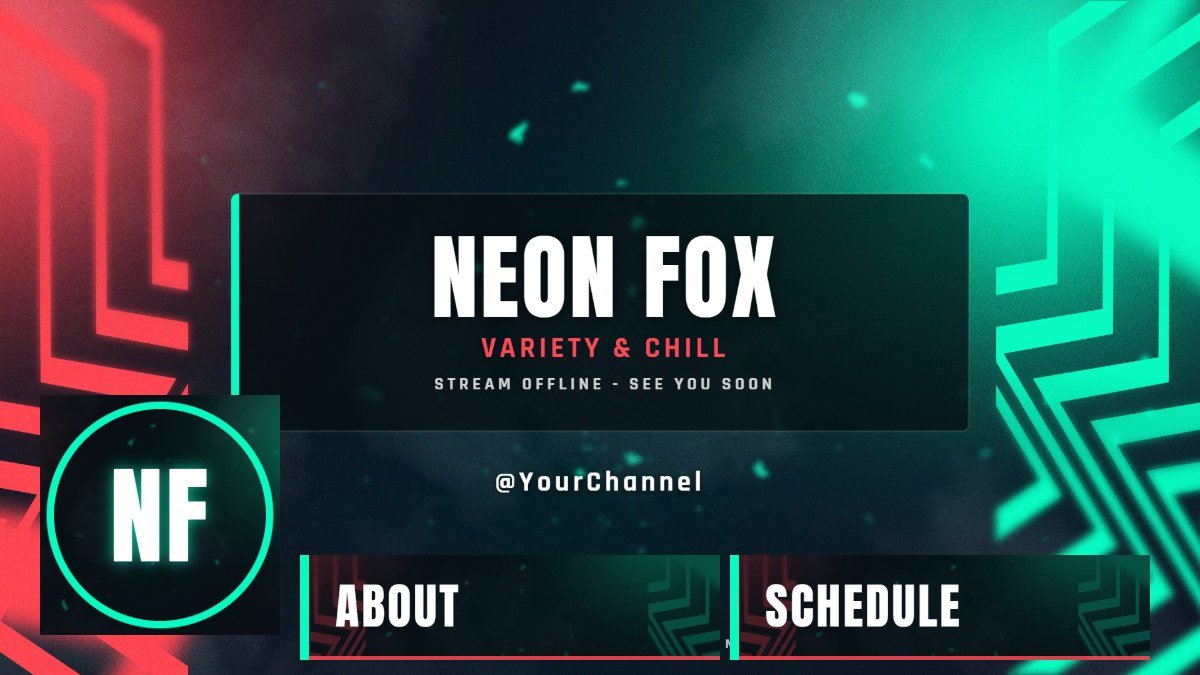
Offline screen, panels, banners and avatar in one click.
-
06
Emote Maker
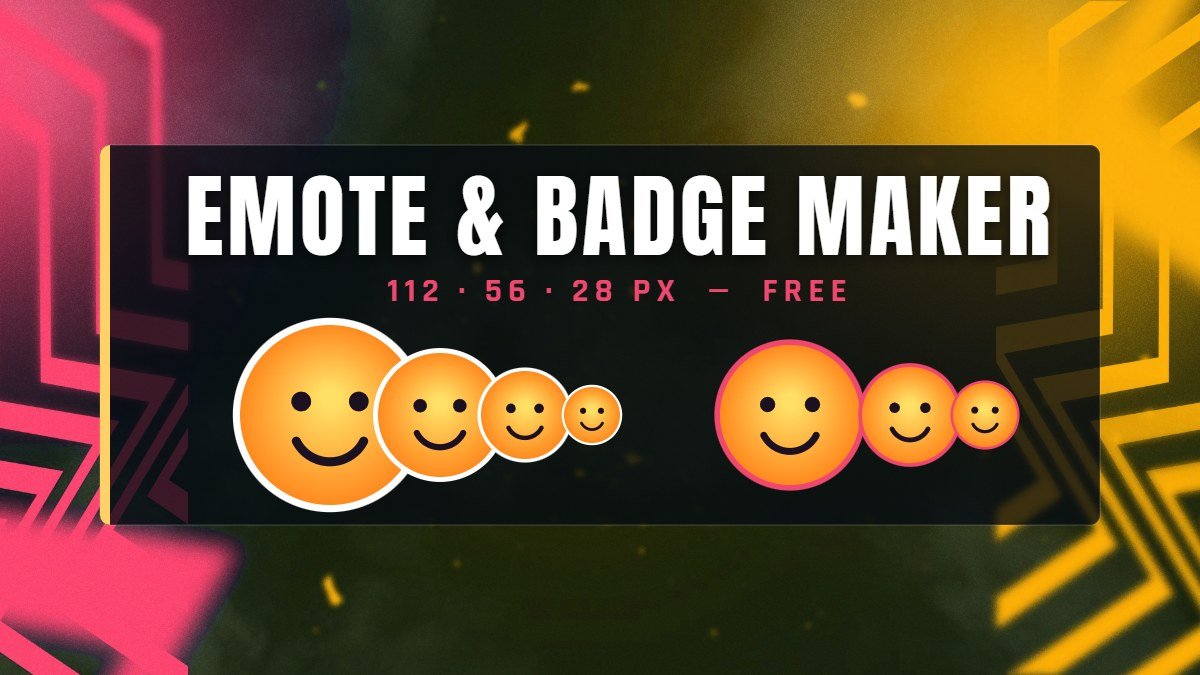
Turn any image into Twitch and Discord emotes and badges.
-
07
Thumbnail Maker
YouTube thumbnails with big text, in a few minutes.